

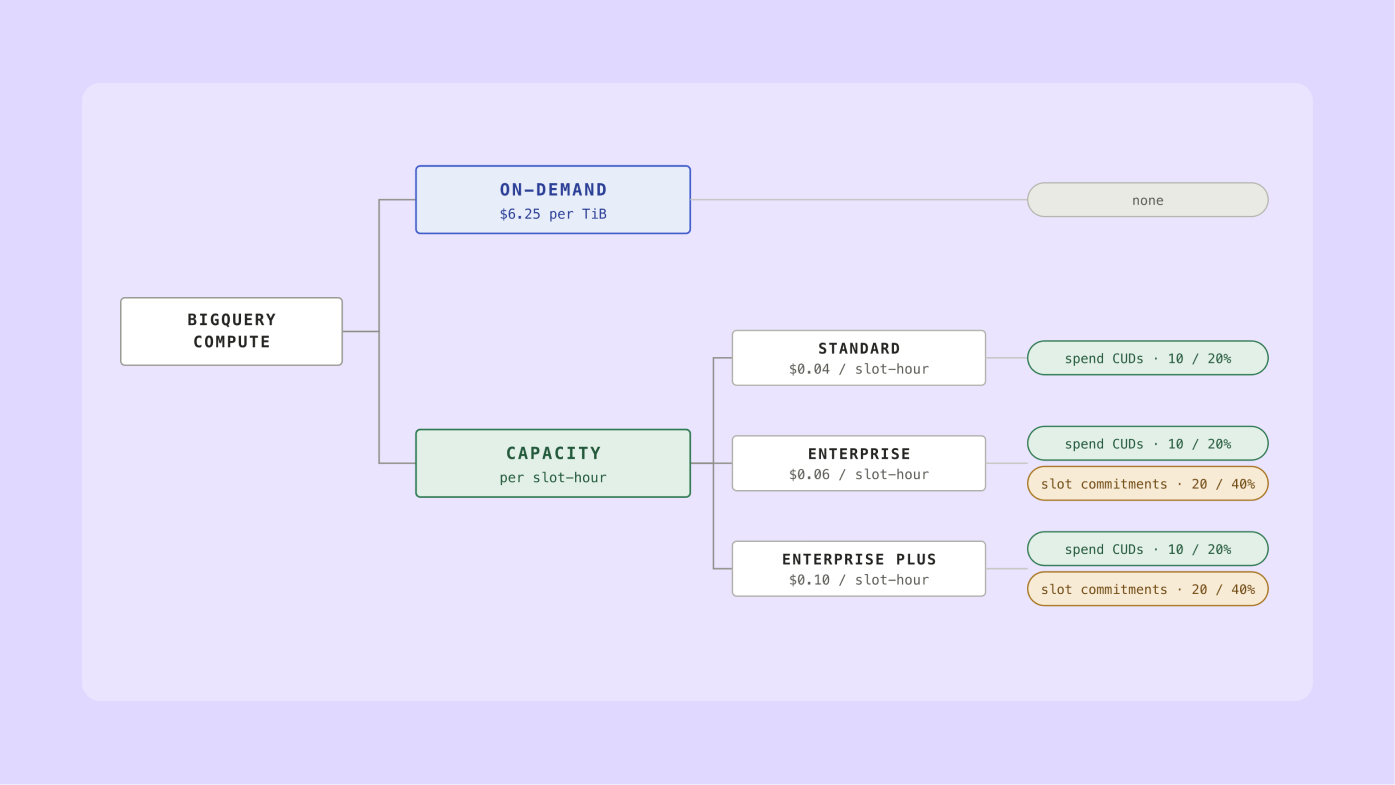
One of BigQuery's strengths is its pricing flexibility. But with two pricing models, three editions, two kinds of discount, and a changing decision matrix as Google ships new functionality and improved mechanics, finding the optimal mix can be challenging.
Google's docs are thorough and (mostly) accurate, but written as a reference. They don't do a good job of answering, in simple language, the practical questions everyone actually has. I myself was new to BigQuery a few years ago. It took me a lot of practice to really understand how much the choices actually cost. It doesn't help that much of the advice out there is out of date.
So here's my BigQuery pricing guide: all about pricing models, commitments, and what's changed. It's mainly about compute pricing, i.e. the cost of running your queries. What it doesn't cover: storage (usually around 10-25% of a typical BigQuery bill; a separate, slower set of decisions), BI Engine, which is billed separately, and features like BQML, BQ Graph and search indexes, which require an Enterprise reservation and take the edition choice out of your hands before you get to it.
We re-verify pricing and update this guide as Google changes it. Last verified: Oct 7, 2026.
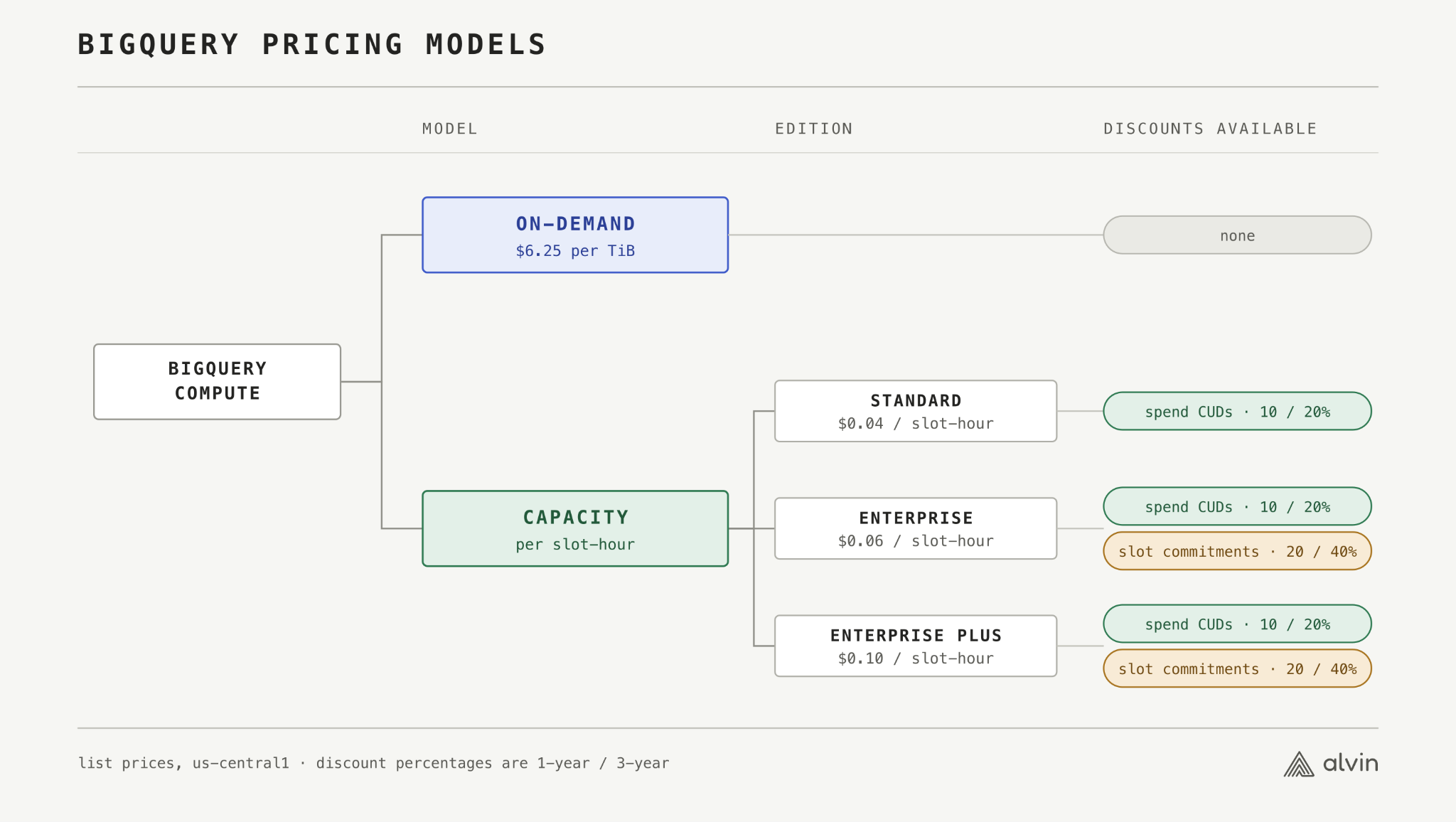
BigQuery charges your SQL queries in one of two ways: by bytes of data processed (On-Demand) or by compute slot-hours consumed (capacity). Both pricing models are abstractions over what BigQuery is actually doing to answer your query, which is worth understanding before we go through them one by one.
Why do these models exist at all? Let's zoom out: whenever you let a cloud service do your work, you have to pay for that somehow. Hyperscalers such as Google Cloud or AWS charge for most services based on metering and rates. One major metered resource is allocated compute, such as the time a CPU or GPU was turned on just for you. If you install a general-purpose database server such as PostgreSQL on a Compute Engine instance, the billing for it is quite simple: time it's on × rate.
BigQuery doesn't work like that. It's a managed database with no cluster to size and nothing to turn on. What you really pay for is the flexibility of near infinite scale: no matter how big your data is, BigQuery has enough resources to return an answer in a reasonable amount of time. It’s doing a lot for you under the hood: allocating CPU and memory, shuffling data between stages, keeping capacity ready for you. Google could meter and charge for each of those separately. Instead they've built abstractions over them, so you get billed on something closer to what the work represents from your point of view.
So: bytes processed answers "how much data did you touch," slot-hours answers "how much machine did you occupy."
Note: flat-rate and flex slots, if you've heard those terms, are gone — retired in July 2023 and replaced by capacity commitments and autoscaling respectively. That being said, some large customers with special agreements may still be using them.
BigQuery On-Demand queries cost $6.25 per TiB of data scanned in most regions, and some regions charge more. The first 1 TiB of queries each month is free for each billing account.
On-Demand is BigQuery's default pricing model, and usually the right answer for getting started without planning anything. You get charged based on bytes processed to fulfill your query. This matches your intuition: the more data you have, the more you'll end up reading, and the more it costs you. It’s also aligned with BigQuery’s data storage, which is columnar. The important thing is you're billed for what the engine had to read, not what your query returns. Select fewer columns and there's less to read, so you pay less. Add a LIMIT and the engine still reads everything, so your bill doesn't change.
There is a minimum of 10 MB per table you reference in a query, so even if you scan just 1 MB, you get billed for at least 10 MB. Some operations are billed at a different rate entirely — training a built-in BQML model runs at 50× the standard per-TiB rate, which is out of scope here but worth knowing before you run one. Cache hits, on the other hand, are free, so if you make sure your queries are cacheable, that can save a good amount of money.
On-Demand is a slightly odd deal, and a fairly generous one on Google's part: your bill tracks bytes, while Google’s cost is compute. Scan little data and do a lot of computation on it (a high compute-to-bytes ratio) and those two come apart; you could consume an arbitrary amount of their compute while your bill stays flat. So there are two guardrails. First, a hard limit on that ratio: cross it and BigQuery kills the query with an error. Second, an allocation of roughly 2,000 concurrent slots per project under normal conditions, which you cannot raise on request. The first usually means something's wrong with the query; the second just means you've outgrown the model. Either way, past a certain amount of computation, On-Demand stops being an option and you have to add Capacity into the mix to scale reliably.
The 2,000 concurrent slots are also an allocation, not a guarantee: On-Demand slots come from a shared regional pool, and when contention is high in a location you get fewer. We see customers hit this occasionally: queries that normally take two minutes taking ten, for no reason visible to them. At the same time, the opposite can occur: under so-called “bursting”, BigQuery will allocate more slots for short periods. In our experience, this can be from 6,000 all the way to 10,000 slots at peak, but it's unpredictable.
In practice that means On-Demand is cheap for big joins, window functions and heavy aggregations, i.e. lots of work on relatively few bytes. It’s expensive for the opposite shape: export and import jobs, or passthrough queries with light filtering, where you read enormous amounts and barely compute at all. That's the case where you'd rather pay for the compute, which is what Capacity lets you do.
BigQuery capacity queries are billed per slot-hour consumed, at a rate set by the edition you choose. List prices in us-central1:
Your rates may differ by region and contract. A rate on its own doesn't tell you much: you need to compare it to what you'd pay On-Demand for the same work, which is what the rest of this guide does.
BigQuery's Capacity pricing model charges for the compute allocated to your workloads, measured in slots. Think of a slot like a CPU busy reading data and doing calculations on top of it, except it isn't one CPU, it's Google Cloud's near infinite capacity, available immediately without any separate provisioning. So one slot is roughly one worker's share of CPU and memory. What you're billed on is slot-hours: one slot running for sixty minutes, no matter how BigQuery distributes them.
Capacity is organized into reservations: a named pool with an edition and a size, though in practice the size is usually a range, more on that below. Each edition has its own rate and feature set. You assign jobs or projects to a reservation (which does not have to live in the same project, by the way). And this isn't a once-and-for-all choice; you can assign per project, per user, even per job.
Capacity suits you when your queries scan a lot of data but are computationally light — a low compute-to-bytes ratio, the opposite of the case where On-Demand favors you.
The Capacity model has a few advantages over On-Demand. The big one is more predictable performance: unlike On-Demand, Capacity slots allocated to you aren’t shared with strangers. The other one is workload isolation: assigned to separate reservations, your pipeline jobs can no longer use up all resources and starve real-time BI queries. And when you do hit a ceiling, Capacity degrades rather than fails: work queues and takes longer.
The edition split is mainly about limits. A Standard reservation is limited to 1,600 slots at a time (but there are some ways to work around that, as we will see). Several advanced BigQuery features are Enterprise-only: materialized views, BQML, BI Engine, graph queries, search/vector indexes, and the list grows every year. If using any of these makes your system simpler and faster to implement, they may be worth the extra cost.
Everything so far is pay-as-you-go: billed by the second (with one caveat, which we’ll get to), no contract, cancel whenever. You can also trade some of that flexibility for a lower rate. There are two separate mechanisms for doing that, and almost everyone conflates them.
Let's clear this up first: reservations don't imply commitments. You can run an autoscaled reservation with no baseline and no contract, paying only for slots consumed, and most BigQuery customers do exactly that. The idea that moving onto slots means signing up for three years of capacity is a common misconception in BigQuery pricing. You'll see this repeated everywhere, including in comparisons against other warehouses: "BigQuery gives you pay-per-byte or committed slots." That's wrong, and it's been wrong since Editions launched in 2023.
Slot commitments are a way to lock in a discount in exchange for contractually obligating yourself to purchase a certain amount of capacity over time. You get 20% off for committing to 1 year and 40% for 3 years. They’re available for Enterprise and Enterprise Plus only. Crucially, committed slots cost you money whether they are used or not, so only lock them in if your workloads are steady enough to keep them busy. Martin worked through the math in detail. In short, commitments are usually only interesting if your deployment is very large and very steady.
Then there are spend-based committed use discounts (CUDs). Instead of locking in a specific number of slots, they lock you into a minimum amount of spend. 1 year for 10% off, 3 years for 20%. These are more flexible than the other type of commitments: they apply to both Standard and Enterprise, and they're settled by the hour rather than continuously. Under a slot commitment, any idle second is money gone and there's no way to earn it back later. A CUD is settled hourly: ten heavy minutes in an otherwise idle hour can meet the commitment.
Two terms that came up in this section warrant further explanation: baselines and autoscaling.
Apart from edition, there are two settings that matter most for reservations.
Baseline is the number of slots that are always on, 24/7. This is how you consume commitments. Say you’ve committed to 200 slots billed continuously; you can then distribute them across your reservations as baselines where they will be continuously available. If you turn on idle slot sharing, reservations can borrow from each other, so how you split a commitment across them matters less. It's possible to set a baseline without a commitment, but you'd pay the full pay-as-you-go rate for slots that sit on around the clock, so it rarely makes sense.
With or without a baseline, you can also leverage the BigQuery autoscaler. Setting a max slots value tells the autoscaler how many slots it can scale up to as needed. The autoscaler is quite greedy, so if you let it, it will scale up to the max to process a big workload more quickly. When the job is done, it will scale down back to your baseline, or zero if you don’t have one. The autoscaler scales in increments of 50 and bills per second. Until 2026 there was also a 60-second minimum on every scale-up event, which meant a three-second burst of 50 slots cost you a full minute of 50 slots. fluid scaling (if you opt in) removes that minimum, and it was costing more than you'd think.
The reservation autoscaler’s 60-second minimum used to be one of its major downsides. If your workloads are bursty — lots of short jobs with gaps, or long queries with many short stages — each scale-up event pays a full minute regardless of how long the work actually took. That is what produces “idle reservations”: slots that are allocated and billed but not utilized. We call the ratio of billed to utilized slot-hours the waste factor.
We’ve analyzed countless environments over the past few years and even the most optimized ones still had waste factors of 1.1–1.3×, while ones with more intermittent workloads would often reach as high as 2–3×. At 2×, $100 worth of job slot consumption costs you $200 on the reservation. Since waste depends on how your work clumps in time, the same monthly volume could cost noticeably different amounts. The only fix was to fill reservations as much as possible.
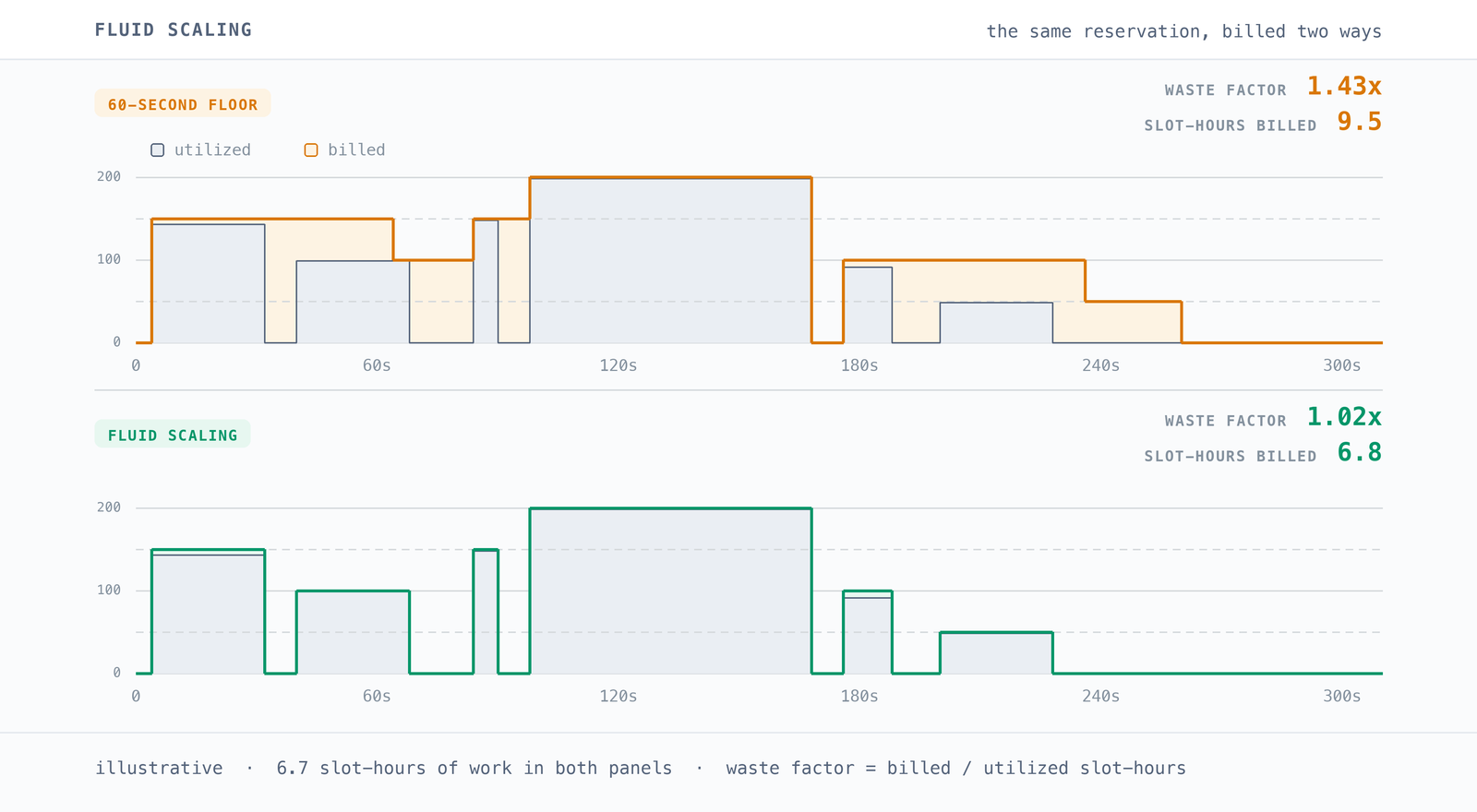
In April 2026, BigQuery introduced fluid scaling as an opt-in configuration, effectively removing the 60-second minimum. They claimed savings of up to 34%, which matches what we see for the worst-affected environments — read our full analysis here. All waste factors we measured under fluid scaling have come down to close to 1×, so if it was 1.43× before, that translates to 30% less cost. If you’re on Capacity pricing and haven't turned it on, that's free money sitting there.
Capacity pricing used to be recommended for heavy, scheduled pipelines because the autoscaler wasted slots, and only steady load could absorb that waste. Without the waste, that limitation isn’t true anymore.
Fluid scaling makes the autoscaler behave predictably, with low waste. A tight max was mostly a defense against the autoscaler’s greedy overshooting, costing you for a full 60 seconds. So why don’t we just set it to infinite now and let the autoscaler handle the rest?
There are a few reasons for this. One is that slot scaling is sublinear at the top end. Shuffle overhead and stages that don't parallelize mean doubling the slots gets you less than double the speed, so the same query costs more slot-seconds than it would have on fewer slots. Another aspect is that a maximum gives you “blast radius” protection: an exploding cartesian join in a 10,000 slot reservation can bill at a max 10,000 slots for as long as it runs (or until you cancel it). If there was no max, your only ceiling would be the project quota, which is a much more expensive place to find out.
The project quota is the other hard limit: Google limits how many slots you can allocate per project and region. It applies to the sum of max reservation sizes and is shared across editions. The default is ~2,000–10,000 by region, but it is possible to request a quota increase through support. Many of our customers have hit this. The increase is usually granted promptly if your usage justifies it.
On Standard, reservations max out at 1,600 slots. Nothing stops you from creating several of them (within your quota), but a single query runs in one reservation, so 1,600 is the ceiling for any one job. A job that could have used 4,000 slots simply runs with 1,600 and takes correspondingly longer. The cost is roughly the same, you're just waiting longer. If that matters for your pipeline, the question is whether the extra runtime costs you more than moving to Enterprise would.
With all of that on the table, the question becomes a calculation rather than a judgment call.
It comes down to a crossover point of bytes scanned per slot-hour, given the rates applicable to you (after discounts). For standard pay-as-you-go list prices, this equals ~6.6 GiB per slot-hour on Standard or ~9.8 GiB per slot-hour at Enterprise. That means if your job scans more than 6.6 GiB for every utilized slot-hour, it is cheaper to move it from On-Demand to Standard.
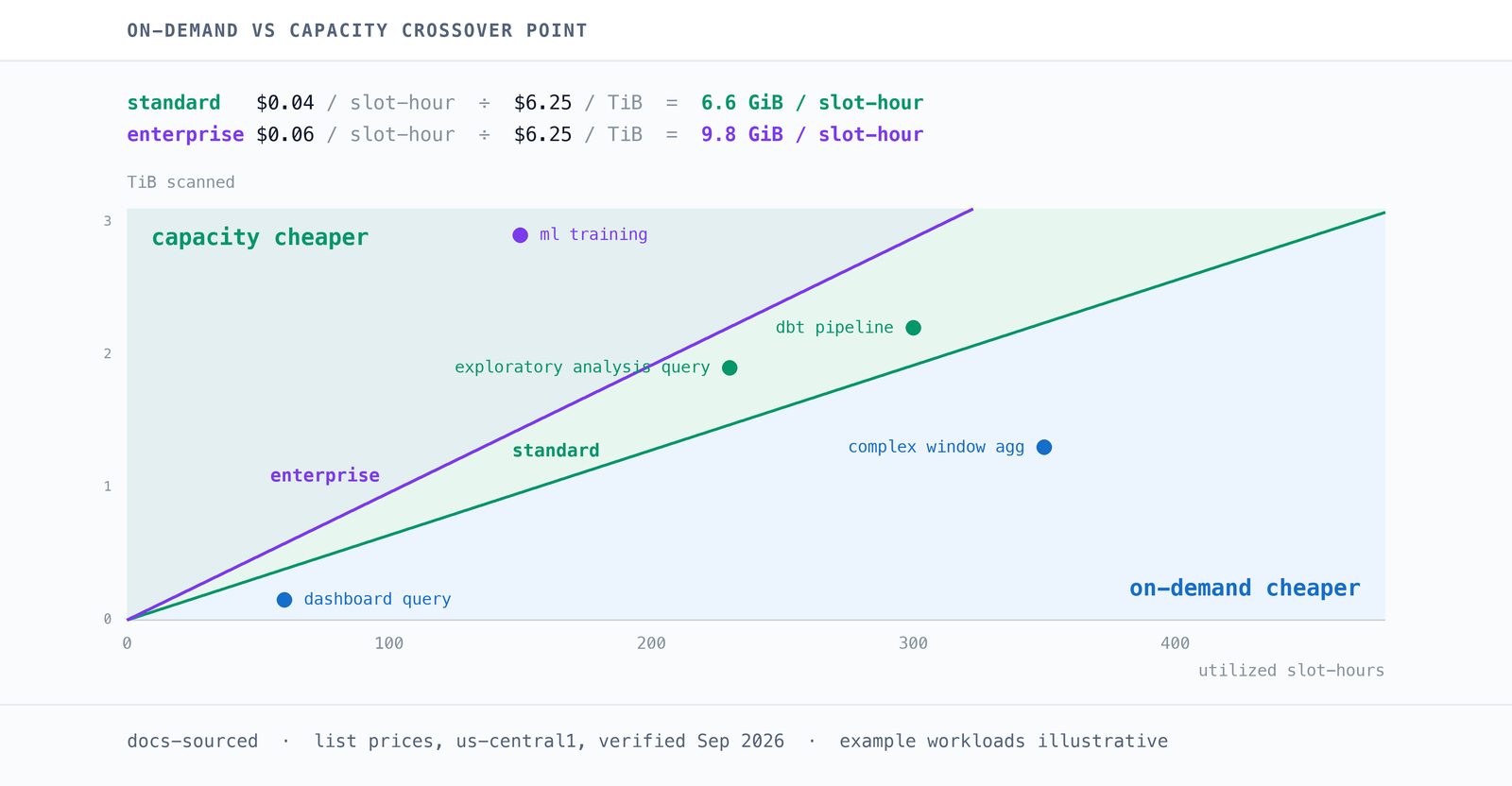
These numbers assume a waste factor of 1. Before fluid scaling, at 2× waste, Enterprise's crossover sat closer to 20 GiB per slot-hour, which is why Capacity used to look worse than it does now. Even though prices didn't change at all, the crossover moved because the waste went away.
The crossover moves with your negotiated rates, and it can move far enough to invert the answer — a deep enough Enterprise discount can put Enterprise below Standard outright. Run it on your actual rates, not list.
On-Demand bills the data, Capacity bills the machine. Which is cheaper depends on a ratio you can measure — and since fluid scaling, on a number that actually holds still.
You don't have to make this choice once for all your jobs. Previously you had to assign a whole project to a reservation or not; now you can assign per user, or even per job. Doing it well means keeping those assignments aligned with dynamically changing workloads, which is a lot of manual bookkeeping. We go into detail here, including how to calculate your own crossover point. Or you can let Alvin do it for you, automatically and continuously. That's what our BigQuery cost optimization platform does.


